Your brand, everywhere guests see it
Hi there!
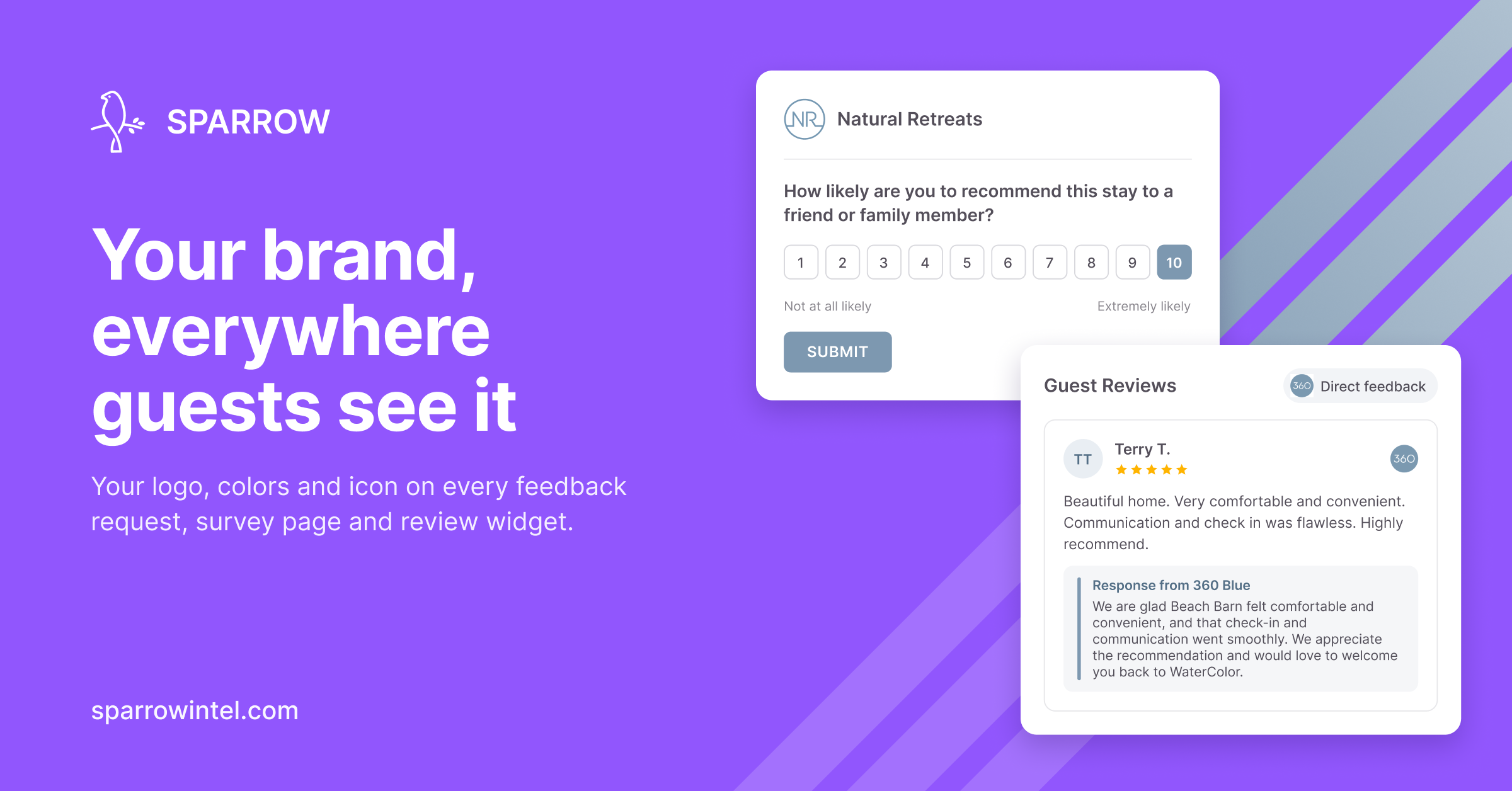
After a stay, guests see your brand in a few places: the feedback request email, the survey page, and the reviews on your own website. Sparrow Intel now puts your brand on every one of them, not ours. If you run more than one brand, each guest sees the right one.
Your icon in place of ours
Brand Settings now has an Icon field: a square image shown next to direct feedback reviews, the responses guests leave on your feedback requests. Upload one and it replaces the Sparrow Intel icon in your review inbox and on your review widgets, including the direct feedback rating in the widget header. Leave it empty and nothing changes.
Review widgets that match each brand
In a review widget's Design section:
Brand: pick one of your brands and the widget uses its color, its name on host responses and its icon. This dropdown appears once you've added a brand.
Company name on responses: host responses read "Response from" followed by your company name. Set a different name for this widget, or leave it blank to use the brand's name.
Brand Color: still adjustable per widget. Use brand color switches back to the brand's.
Change a brand's color, name or icon once, and every widget using it updates on its own.
One account, several brands
If you run more than one company under one Sparrow Intel account, add each one as an Additional Brand with its own name, color, logo and icon. Each feedback request, whether sent by a rule or shared as a static link, can use its own brand. The guest sees only that brand's name, logo and color, in the email and on the survey page. Back in your review inbox, each response shows that brand's icon.
A typical setup is one feedback request rule per brand, each filtered to that brand's property group, plus one review widget for each brand's website. If your PMS already tags listings by brand, Auto Property Groups can build those groups for you.
Also new
Ask for an NPS score. Under Requested Fields, choose NPS Score (10-point scale) instead of the 5-star overall rating. Guests are asked, "How likely are you to recommend this stay to a friend or family member?" on a 1-10 scale. Your top-feedback options, like sending happy guests on to leave a public review, then apply to guests who answer 9 or 10.
Preview templates before they send. On Message Templates, click the eye icon on any template, or Preview while you're editing one. You'll see the message as a guest would receive it, with every variable filled in from a sample reservation. With most PMSs, you can also enter a real booking's confirmation code. The preview also flags any variable that isn't recognized or would come out blank.
Getting started
Click your profile icon in the top-right corner, then Brand Settings.
Upload an Icon for your default brand. To add another brand, scroll to Additional Brands and click Add Brand.
Choose the brand in the Brand dropdown on a feedback request, or under Design on a review widget.
For the full walkthrough, see the Using Multiple Brands in Feedback Requests and Review Widgets help guides.
Want to learn more?
If you'd like help setting up your brands, or want to catch up on anything else we've released recently, book time with us.
— The Sparrow Intel Team