[BETA] Sparrow Intel Browser Extension
Written By Chad McGuire (Sparrow Intel)
[BETA]: Request access to the Sparrow Intel Browser Extension by sending an email to support@sparrowintel.com. We will be opening this up to all users in the coming weeks.
What Is the Sparrow Intel Browser Extension?
The Sparrow Intel OTA Reviews extension connects your OTA accounts to Sparrow Intel so that guest reviews are automatically synced into your dashboard. This is in addition to Sparrow Intel's direct, official API connections to channels like Airbnb and Google, as well as access to other channels like Booking.com, Vrbo, and more through specific PMS integrations.
The extension currently supports Expedia, with additional platforms coming soon.
Download & Install the Extension
Step 1: Download the Extension
Download the extension as a .zip file here:
Download Sparrow Intel Extension (.zip)
Step 2: Unzip the File
Windows: Right-click the downloaded
.zipfile and select "Extract All...", then choose a location you'll remember (e.g., your Desktop or Documents folder).Mac: Double-click the
.zipfile. It will automatically extract into a folder in the same location.
Important: Do not delete or move this folder after installation. Chrome and Edge reference it directly, so the extension will stop working if the folder is removed.
Step 3: Load the Extension in Your Browser
Google Chrome
Open Chrome and go to
chrome://extensions(type it into the address bar and press Enter).Toggle on Developer mode using the switch in the top-right corner.
Click "Load unpacked" in the top-left area.
Navigate to and select the unzipped extension folder (the one containing
manifest.json).The Sparrow Intel extension icon will appear in your browser toolbar. You may need to click the puzzle piece icon and pin it for easy access.
Microsoft Edge
Open Edge and go to
edge://extensions(type it into the address bar and press Enter).Toggle on Developer mode using the switch in the bottom-left corner.
Click "Load unpacked" near the top of the page.
Navigate to and select the unzipped extension folder (the one containing
manifest.json).The Sparrow Intel extension icon will appear in your browser toolbar. You may need to click the puzzle piece icon and pin it for easy access.
Get Your API Credentials
The extension needs your Sparrow Intel API credentials to connect to your account.
Go to your Integrations page: https://portal.sparrowintel.com/account/?tab=integrations (Or click on your initials in the top-right corner of the Sparrow Intel portal, then click "Integrations".)
Scroll down to the "Sparrow Intel Public API" card.
Type in a label of your choice (e.g., "Browser Extension"), then click "Generate New Credentials".
Copy your API Client ID and Client Secret -- you'll need these in the next step.
Configure the Extension
Click the Sparrow Intel extension icon in your browser toolbar.
Enter your Client ID and Client Secret from the previous step.
Click Save Credentials. The extension will validate your credentials and confirm the connection.
To connect Expedia: Go to Expedia Partner Central (https://www.expediapartnercentral.com/). Log in if you have not already logged in.
How Reviews Are Matched to Your Properties
Sparrow Intel automatically matches Expedia reviews to the correct property in your account -- no manual mapping required.
When a new Expedia review is synced, Sparrow Intel looks up the guest's reservation in your PMS using details from the review. Once the reservation is found, the review is assigned to the exact property (or unit) from that reservation. This means that even if your Expedia listing represents multiple units - such as a multi-unit property, representative inventory, or a hotel -each review will be tied to the specific unit the guest actually stayed in. The review will also link directly to the reservation in your PMS for easy reference.
In the rare case that a matching reservation isn't found, the review will still appear in your Sparrow Intel dashboard - it just won't be linked to a specific property or reservation.
How It Works
Once configured, the extension works automatically in the background:
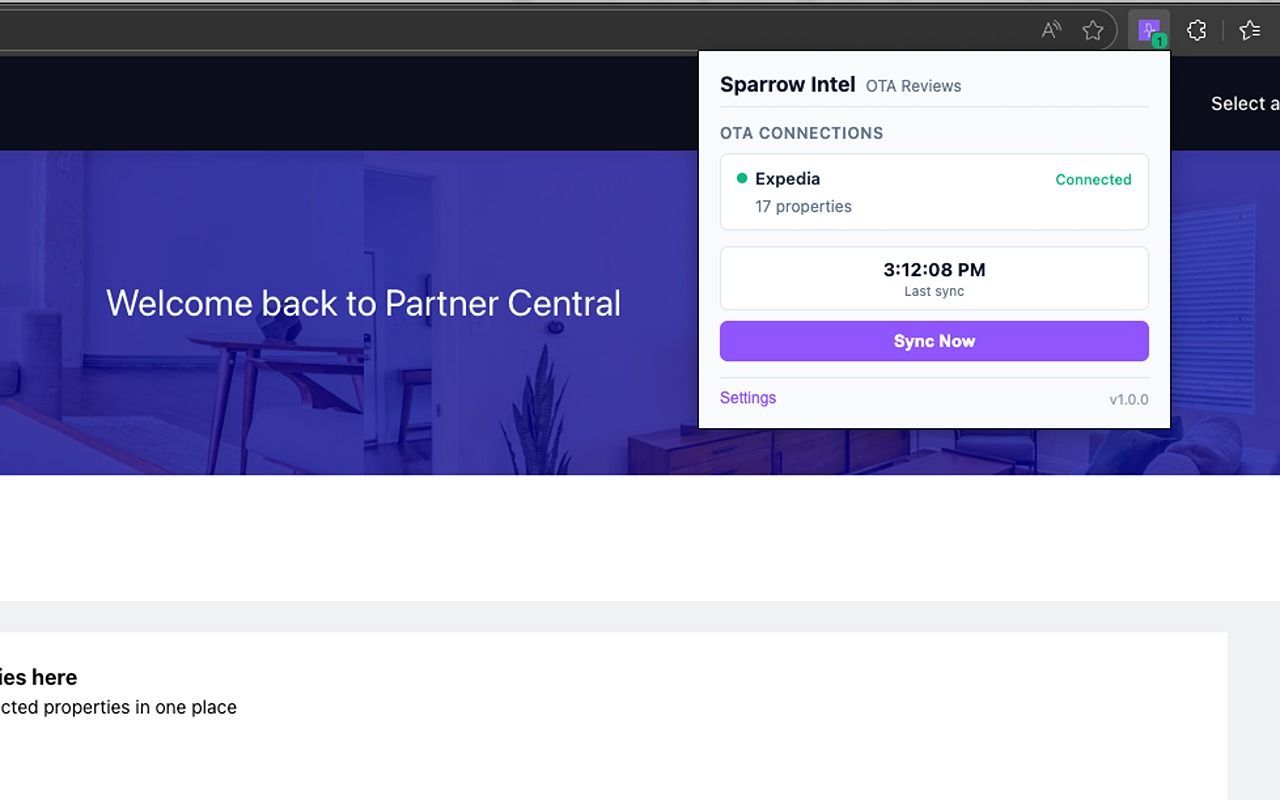
Review Sync: Every 60 minutes, the extension checks your connected OTA accounts for new guest reviews and sends them to your Sparrow Intel dashboard.
Replies: When you write review replies in the Sparrow Intel portal (or automate review replies with Chrip AI and Rules), the extension picks it up and submits it directly to the OTA platform.
Session Monitoring: Every 15 minutes, the extension verifies that your OTA sessions are still active and updates the connection status.
Manual Sync: Click the extension icon at any time and hit "Sync Now" to trigger an immediate review sync.
Staying Connected to Your OTA
For the extension to sync reviews, you need to be logged into your OTA partner portal. Simply visit your Expedia Partner Central account in the same browser, and the extension will automatically detect your active session. The extension icon will show a green indicator when connected.
If the indicator turns red, visit your OTA partner portal and log in again to restore the connection.
Keep Your Browser Running: The extension syncs reviews in the background as long as your browser (Chrome or Edge) is open. If you close the browser entirely, syncs will pause until you reopen it. You don't need to keep an Expedia tab open -- just make sure the browser itself is running and that your OTA session hasn't expired.
Was this helpful?
Still need help? Ask the team