[BETA] Asana Integration
Written By Chad McGuire (Sparrow Intel)
This guide explains how to set up and use the Asana integration in Sparrow Intel to create tasks directly in your Asana workspace.

Overview
Sparrow Intel's Asana integration unlocks powerful features:
Automatically detect and resolve issues. Chirp AI identifies cleaning and maintenance concerns from reviews, private feedback, and messages - then creates Asana tasks automatically.
Manually create tasks - linked to your workspace, projects, and assignees in Asana
Setup Steps
Go to your Integrations tab and click the "Connect" button for Asana.

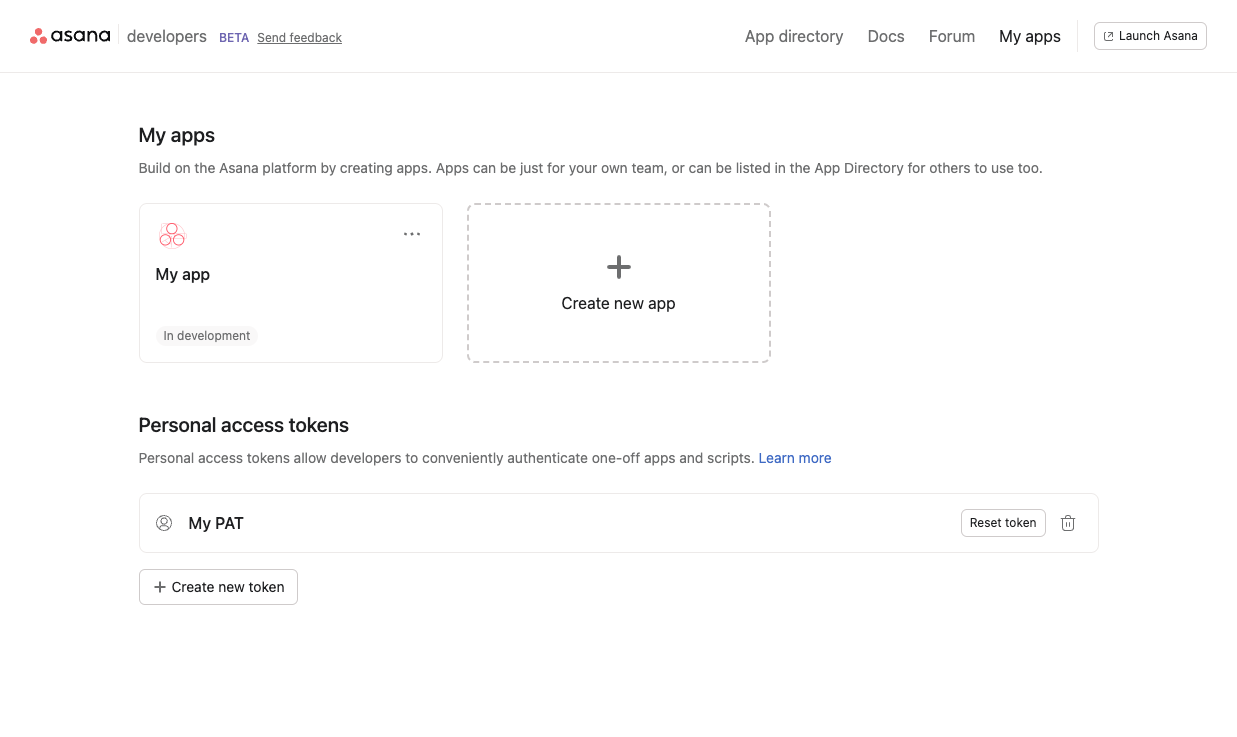
Go to your Asana developer console.
Click Create new token to generate a Peronal Access Token (PAT). Copy the token immediately - you won't be able to see it again.
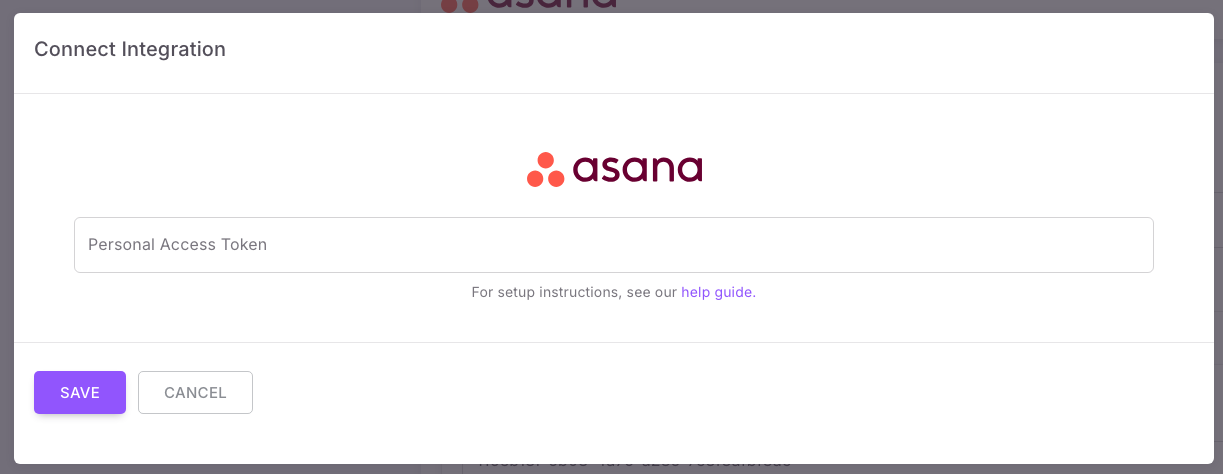
Paste your Asana Personal Access Token, then click "Save".
Assuming the connection was successful, that's it! Please allow up to an hour for Sparrow Intel to sync your Asana account settings.
Feature Details
1. Manual Task Creation
Create Asana tasks directly from any review:
Open a review.
Click the Create Task button (or look for the task creation option)
Select Asana as the task source
Fill in the task details:
Title (required): The name of the task
Description (optional): Additional context or details
Project (required): Choose which Asana project to add the task to
Assignee (optional): Select a team member to assign the task to
Due Date (optional): Set a deadline for the task
Click Create to add the task to Asana
The created task will include a link back to the original review in Sparrow Intel.
2. Automated Task Creation with Rules
Set up rules to automatically create Asana tasks when specific conditions are met:
Go to the Rules page.
Create a new rule or edit an existing one
Set your desired conditions (e.g., review sentiment, rating, keywords)
In the Actions section, select Create Asana Task
Configure the action:
Assignee (optional): Choose who should be assigned new tasks
Project (required): Select the target Asana project
Save the rule
When the rule conditions are triggered, a task is automatically created in Asana with:
A title based on the review or conversation context
The content included in the task description
3. Task Assignment
When creating tasks (manually or via rules), you can assign them to any member of your Asana workspace:
Assignees are synced from your Asana workspace
The dropdown shows all available team members
Assignment is optional - tasks can be created unassigned
4. Project Organization
All tasks must be created within an Asana project:
Only non-archived projects are shown in the dropdown
Projects are synced automatically when you connect the integration and again at least once per day
Frequently Asked Questions
Can I connect multiple Asana workspaces?
Currently, the integration connects to your first Asana workspace. If you need to work with a different workspace, ensure the Personal Access Token you use has access to that workspace.
Do I need to re-enter my token periodically?
No, Personal Access Tokens in Asana do not expire unless you revoke them manually. Your connection will remain active until you disconnect or revoke the token.
What happens if I revoke my Personal Access Token in Asana?
Task creation will fail, and you'll see authentication errors. You'll need to generate a new token and update the integration in Sparrow Intel.
Can I edit tasks in Sparrow Intel after creating them?
No, tasks are created in Asana and should be managed there. Sparrow Intel provides a link to the task for easy access.
Was this helpful?
Still need help? Ask the team