How to Cancel a Scheduled Message for a Specific Guest
Rules that use the Send Message (After Check-Out) or Send Message (After Delay) action don't send right away. They queue the message to go out later. Until it sends, you can cancel it for one guest without changing the rule.
For example, a prediction rule might ask guests with a positive review prediction to leave a review, and there's one guest you'd rather not ask.
What You Can Cancel
- Messages queued by a rule's Send Message (After Check-Out) or Send Message (After Delay) action, including messages that ask a guest for a review.
- Feedback requests can't be canceled here. A feedback request is sent as soon as its rule runs, so it never appears in Scheduled Messages.
- Review reminders sent by Airbnb, other booking channels, or your PMS aren't controlled by Sparrow Intel.
Step-by-Step Instructions
- Open Rules
- In the left menu, under Automations, click Rules.
- Open Scheduled Messages
Click the timer icon at the top right of the Rules page, next to Create Rule. Hover over it to see its label, View Scheduled Messages.
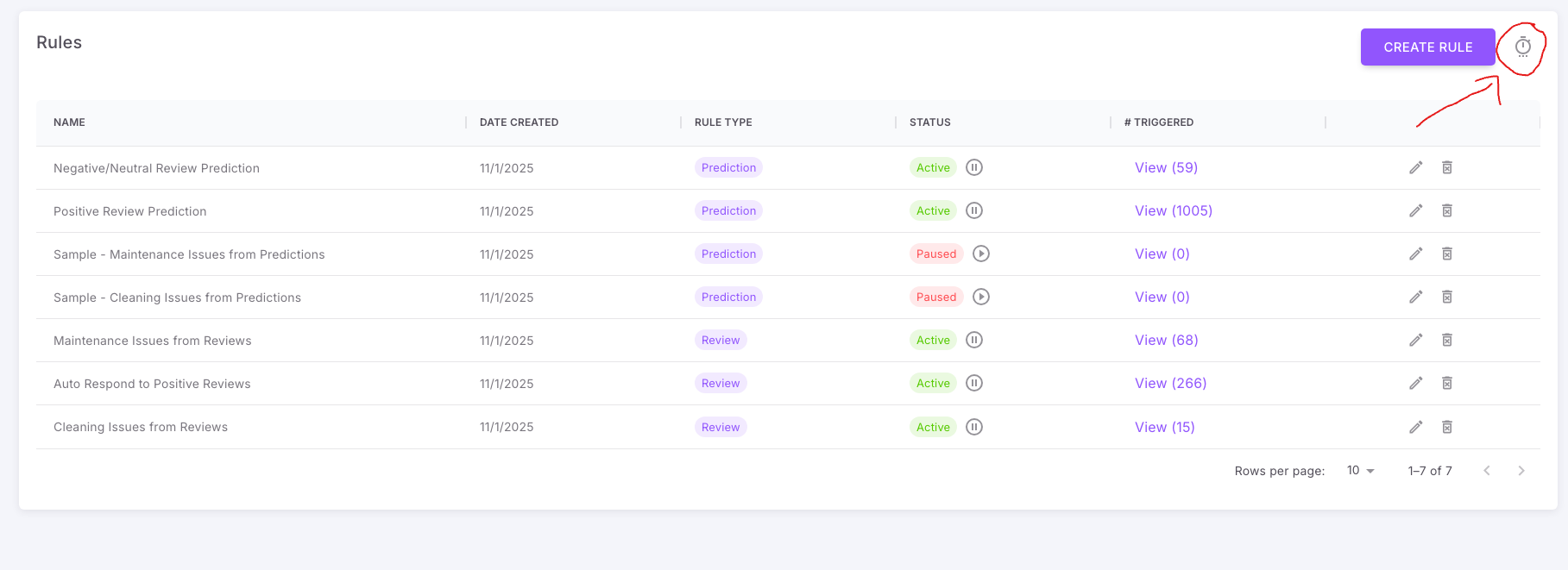
- The Scheduled Messages page lists every message your rules have queued that hasn't been sent yet, with the guest's name, departure date, and scheduled send time.
- Find the guest
- Use the search box to find the guest by name.
- Preview the message (optional)
- Click the speech-bubble icon in the guest's row to read the message and confirm it's the one you want to cancel.
- Cancel the message
- Click the trash icon in the guest's row. Hover over it to see its label, Cancel Scheduled Message.
- In the dialog, type the guest's full name exactly as it appears in quotes, then click Cancel Scheduled Message.
- If you don't see the trash icon, you need permission to edit rules. Ask an account admin.
What Happens Next
- The message is deleted and won't be sent. A canceled message can't be restored.
- The rule stays on, and messages to other guests still send.
- Only this one message is canceled. If the guest triggers the rule again, for example on a future stay, a new message is scheduled.
Helpful Notes
- A message appears only after its rule runs. You can't cancel a message before it's on the Scheduled Messages page.
- Cancel before the send hour starts. Messages go out during the hourly sync in the hour they're due, so cancel before the hour shown under Scheduled Send.
- To skip guests who already left a review, turn on Skip Send If Guest Already Left Review in the rule's action. Sparrow Intel then cancels the message automatically if the guest reviews first. See Skip Sending Message If Guest Left a Review.
- To leave out a whole group of guests, add a condition to the rule instead.
Was this helpful?
Still need help? Ask the team